GA4 Data Doesn't Look Right? How to Diagnose Common Tracking Issues
If GA4 numbers do not match what actually happened, the issue is usually in what the site is sending.
Missing events, duplicate sends, inconsistent tagging, and failed requests all change what GA4 records. Once that happens, conversion rates, funnels, and revenue metrics become unreliable.
By the end of this article, you should be able to identify which type of tracking issue is most likely affecting your data, confirm it at the request level, and know where to look next.
Scan a page to check for duplicate, missing, or inconsistent tracking.
Signs this may be the problem
A few patterns tend to show up early:
- Conversions exceed or fall short of actual outcomes
- Revenue does not match backend systems or ecommerce platforms
- Page views or sessions shift after a deployment without traffic changing
- Funnels show unexpected drop-offs or gaps
- Similar pages report very different performance
These signals point to runtime tracking issues. The next step is to verify what the browser is actually sending.
Fastest way to confirm it
If you only do one thing, do this:
- Open the page in a clean session.
- Open Chrome DevTools and go to Network.
- Filter for GA4 requests such as
collect?v=2or/g/collect. - Perform one action.
- Inspect the requests tied to that action.
You are validating four things:
- Presence: did a request fire
- Count: did it fire once or multiple times
- Consistency: does the payload match expectations
- Delivery: did the request complete successfully
What is happening
GA4 records what it receives. If the site sends incorrect, incomplete, or inconsistent data, GA4 reflects that.
Most tracking issues fall into a small set of failure modes. Each one produces a different pattern in requests and reports.
Duplicate events
One user action produces multiple event sends.
Examples:
- One form submission triggers two
generate_leadrequests - One purchase sends two
purchaseevents with the sametransaction_id
This inflates conversions and revenue. If that is the main pattern you are seeing, read GA4 Events Firing Twice? How to Diagnose Duplicate Tracking for a deeper breakdown.
Missing events
An expected event never fires.
Examples:
- A completed purchase does not send a
purchaserequest - SPA navigation does not trigger a
page_view
This leads to underreporting.
Extra or unintended events
Events fire even though no real action occurred.
Examples:
generate_leadfires on button click and again on successful submission- Events trigger on page load due to broad conditions
This introduces noise into reporting.
Inconsistent tagging
The same event behaves differently across pages or flows.
Examples:
- Different measurement IDs across templates
- Missing or inconsistent parameters such as
valueorcurrency - Event structure varies between pages
This fragments the dataset and breaks comparisons.
Failed requests
The event is generated but never reaches GA4.
Examples:
/g/collectrequests fail or are blocked- JavaScript errors interrupt tracking execution
This creates silent data loss.
How to verify it
The fastest way to diagnose tracking issues is to inspect what the browser sends.
Check the browser, not just GA4 reports
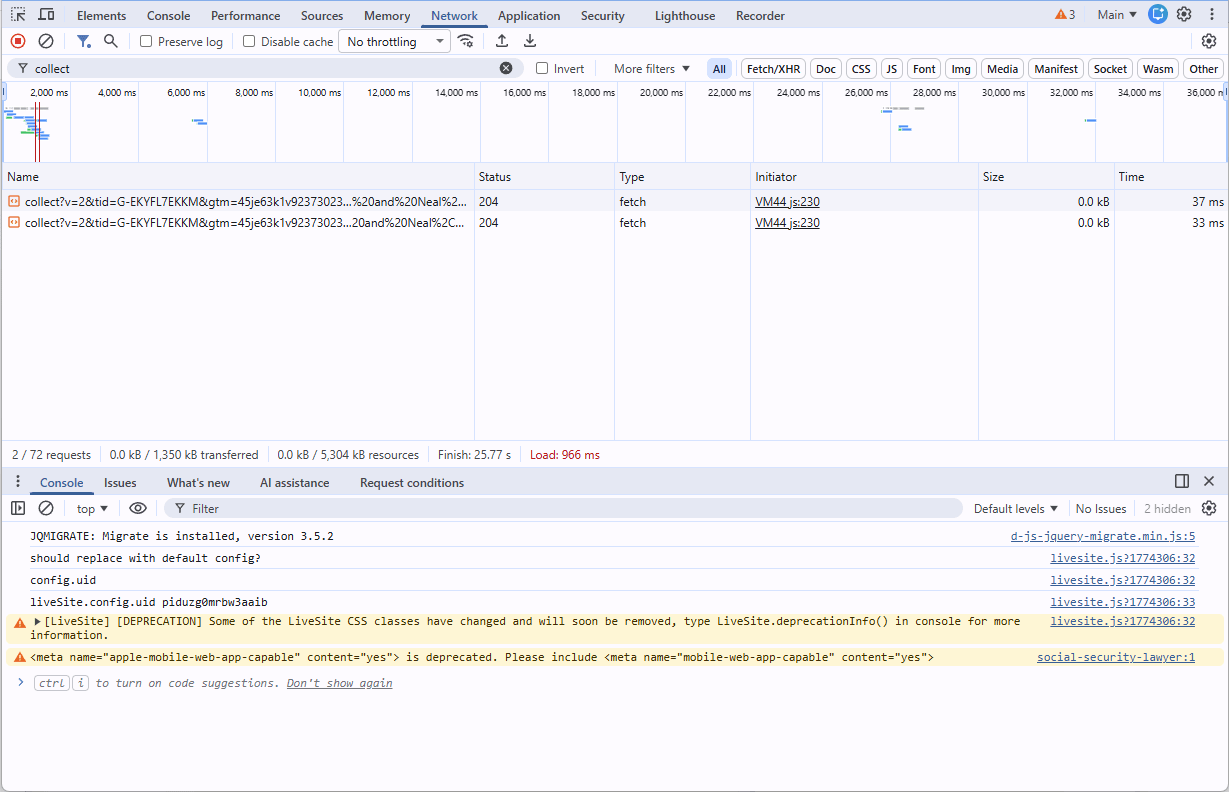
GA4 report-level anomalies can tell you something is wrong. They cannot tell you whether the event fired, fired twice, had the wrong payload, or failed to send.
Step-by-step validation
- Open the page in a clean session.
- Open Chrome DevTools and go to Network.
- Filter for GA4 requests such as
collect?v=2or/g/collect. - Perform one action.
- Inspect the requests tied to that action.
Repeat this across a short flow. Many issues only appear during transitions such as navigation, form submission, or checkout.
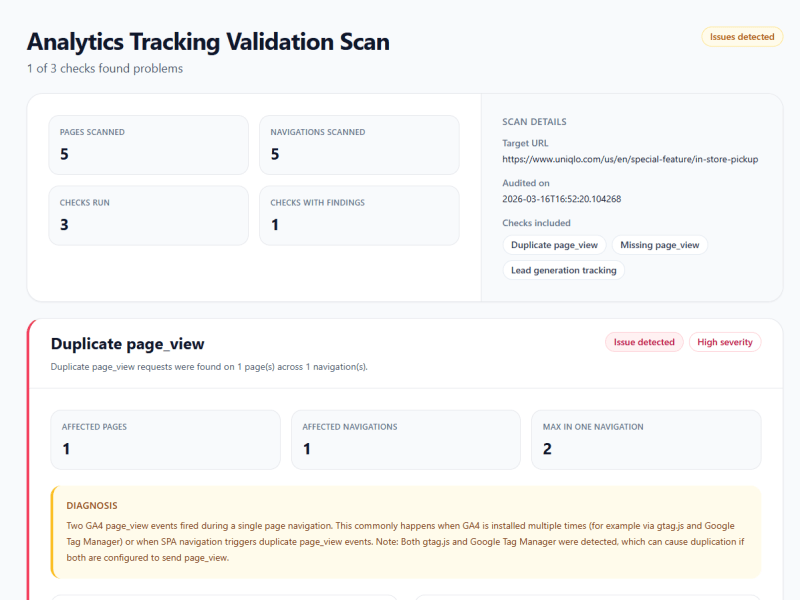
What this looks like in a scan
Validation tools that help
The Network tab is the most universal option because it works across implementations and shows what actually left the page.
Tag Assistant is useful when you want a clearer UI for understanding the tagging setup. Depending on the implementation, it can help you see which Google tags were detected, whether tag activity happened during the action, and how the setup is wired at a higher level.
Use this to confirm whether a GA4 request fired, how many times it fired, what payload was sent, and whether the request completed.

Use this when you want a simpler view of the Google tag setup and tag activity around the action you are testing.
In practice, the Network tab confirms the request pattern, and Tag Assistant gives you a simpler way to inspect the tag setup behind it. It is helpful context, not a requirement.
How to identify which problem you have
Start with one real action and match what you see in the Network tab to the patterns below.
| Observation | Likely issue |
|---|---|
| Two requests for one action with matching parameters | Duplicate events |
| No request for an expected action | Missing events |
| Requests fire without a real action | Extra or unintended events |
| Same event looks different across pages | Inconsistent tagging |
| Requests fail or do not complete | Failed requests |
This narrows the problem before you investigate implementation details.
Common causes
Tracking issues usually come from overlapping systems or incomplete implementations. Each failure mode tends to map to a small set of causes.
Overlapping send paths
The same event is sent from multiple sources.
Common patterns:
- GTM and hardcoded
gtag()both sending events - Browser and server-side tracking both sending
purchase - Plugins or integrations duplicating existing logic
Trigger logic issues
Tags fire more than once or under the wrong conditions.
Examples:
- Event tied to both click and submit
- Multiple triggers match the same action
- Old and new tags both active
SPA navigation handling
Client-side routing changes how page views behave.
Common issues:
- Route changes do not trigger
page_view - Multiple listeners fire on one navigation
- Automatic and manual tracking overlap
Partial or inconsistent implementation
Tracking is not applied consistently across the site.
Examples:
- Missing tags on some templates
- Different measurement IDs across environments
- Inconsistent parameter structure
Consent timing and reinitialization
Tracking behavior changes based on consent state.
Examples:
- Events fire before and after consent updates
- GA4 reinitializes and resends events
- Requests are blocked entirely
JavaScript errors and network failures
Execution issues prevent tracking from completing.
Examples:
- Console errors interrupt event logic
- Requests fail or are blocked by the browser
How to fix it
The goal is to align one user action with one correct event send.
Map all event senders
Start by identifying every place events can originate:
- GTM
- Hardcoded scripts
- Plugins or integrations
- Backend or server-side systems
This makes overlap visible.
Assign ownership per event
Each event should have one clear source.
Examples:
page_viewowned by one system onlypurchaseowned by server or client with deduplication logic
Remove duplicate send paths.
Align tracking with real user actions
Events should reflect actual business outcomes:
page_viewon navigationgenerate_leadon successful submissionpurchaseon confirmed order
Avoid attaching events to intermediate steps.
Tighten trigger conditions
Ensure tags fire:
- Once per action
- At the correct moment
- Under one condition
Reduce overlapping triggers and duplicate listeners.
Standardize configuration
Make sure all pages:
- Use the same measurement ID
- Use the same container
- Send consistent parameters
This keeps the dataset comparable.
Validate after changes
Repeat the same validation flow:
- One action
- One request
- Correct payload
- Successful delivery
Do not rely on configuration alone.
Concrete examples
Here are specific patterns that help separate one type of tracking problem from another.
Example 1: one page load sends two `page_view` requests
Scanner flagged: The scan shows two page_view requests tied to one load.
Usually means: Usually this means duplicate tracking from overlapping send paths, often GTM plus hardcoded Google tag logic.
Confirm it: Use the Network tab to confirm that one page load produced two page_view requests. If GTM is involved, Preview can help you inspect which GTM tags and triggers were active during that load.
Typical fix: Remove the overlapping sender and keep one clear owner for page_view.
Example 2: navigation changes but no new `page_view` request appears
Scanner flagged: The scan shows a route change without a corresponding page_view request.
Usually means: Usually this means SPA navigation is not being tracked correctly or automatic page tracking was disabled without a working manual replacement.
Confirm it: Perform one route change and inspect the Network tab for a fresh page_view request with the updated URL.
Typical fix: Track page views on route change and verify the payload updates with the new location.
Example 3: the same event looks different on different pages
Scanner flagged: The scan shows the same event name but different parameters or measurement IDs across templates.
Usually means: Usually this means the tracking implementation is inconsistent across the site rather than globally broken.
Confirm it: Compare requests from two similar pages and check whether event structure, parameters, and destination IDs match.
Typical fix: Standardize the implementation so the same business event uses the same destination and payload everywhere.
Operational takeaway
Tracking issues are runtime problems.
GA4 reflects what the site sends. If requests are missing, duplicated, inconsistent, or failing, reporting will follow.
Most issues come from overlapping systems, trigger logic, or incomplete implementations. The fastest way to diagnose them is to inspect requests at the browser level and match them to a clear failure pattern.
Once you identify the pattern, the fix usually comes down to ownership, trigger control, and consistent implementation.
Want to check if the site is sending the wrong data?
Run a scan to catch duplicate sends, missing requests, and other tracking problems before they distort reporting.