GA4 Events Firing Twice? How to Diagnose Duplicate Tracking
If GA4 events are firing twice, the usual problem is not GA4 reporting. It is the site sending the same event more than once.
The most common causes are overlapping tracking paths: GTM and hardcoded gtag() both sending the event, automatic and manual page_view tracking both active, or browser and server both sending the same purchase. The result is inflated page views, conversions, and revenue, plus attribution you cannot fully trust.
By the end of this article, you should be able to confirm whether duplicate tracking is actually happening, identify the most likely cause, and narrow down where the extra send originates.
Scan any page to check for duplicate page_view requests.
Signs this may be the problem
A few signals tend to show up early:
page_viewcounts rise after a deployment, but traffic did not actually increasegenerate_leadlooks too high compared with real form submissionspurchaseevents exceed actual order count- Revenue in GA4 looks inflated relative to the ecommerce platform or backend system
- GTM Preview shows one expected tag firing, but GA4 still records more events than expected
These are warning signs. To confirm the issue, inspect the requests the page actually sends.
Fastest way to confirm it
If you only do one thing, do this:
- Open the page in a clean session.
- Open Chrome DevTools and go to Network.
- Filter for GA4 requests such as
collect?v=2or/g/collect. - Perform the action once.
- Check whether two GA4 requests were sent for that one action.
If the requests are close together and have the same event name plus matching key parameters such as transaction_id, you are likely looking at duplicate tracking.
What is happening
Duplicate tracking means one real user action produces multiple GA4 event sends for the same underlying event.
That action might be:
- one page load
- one SPA route change
- one form submission
- one add-to-cart
- one completed purchase
Two events only indicate a problem if the implementation was supposed to send one.
If a user reloads a page and you expect another page_view, that may be valid. If a user submits a form twice, two conversion events may also be valid. The problem starts when one action triggers multiple sends because the setup overlaps, re-fires, or listens in more than one place.
This is why duplicate tracking often gets misread as a reporting issue. Teams look at GA4 first and assume the problem is in the interface, attribution, or data freshness. In many cases, the page simply sent the event twice.
How to verify it
Report-level anomalies can tell you something is wrong. They cannot tell you whether the event was actually sent twice or where the duplication started.
To verify duplicate tracking, reproduce one action and inspect the outgoing requests.
Check the browser, not just GA4 reports
The Network tab is usually the most reliable source because it shows what actually left the page.
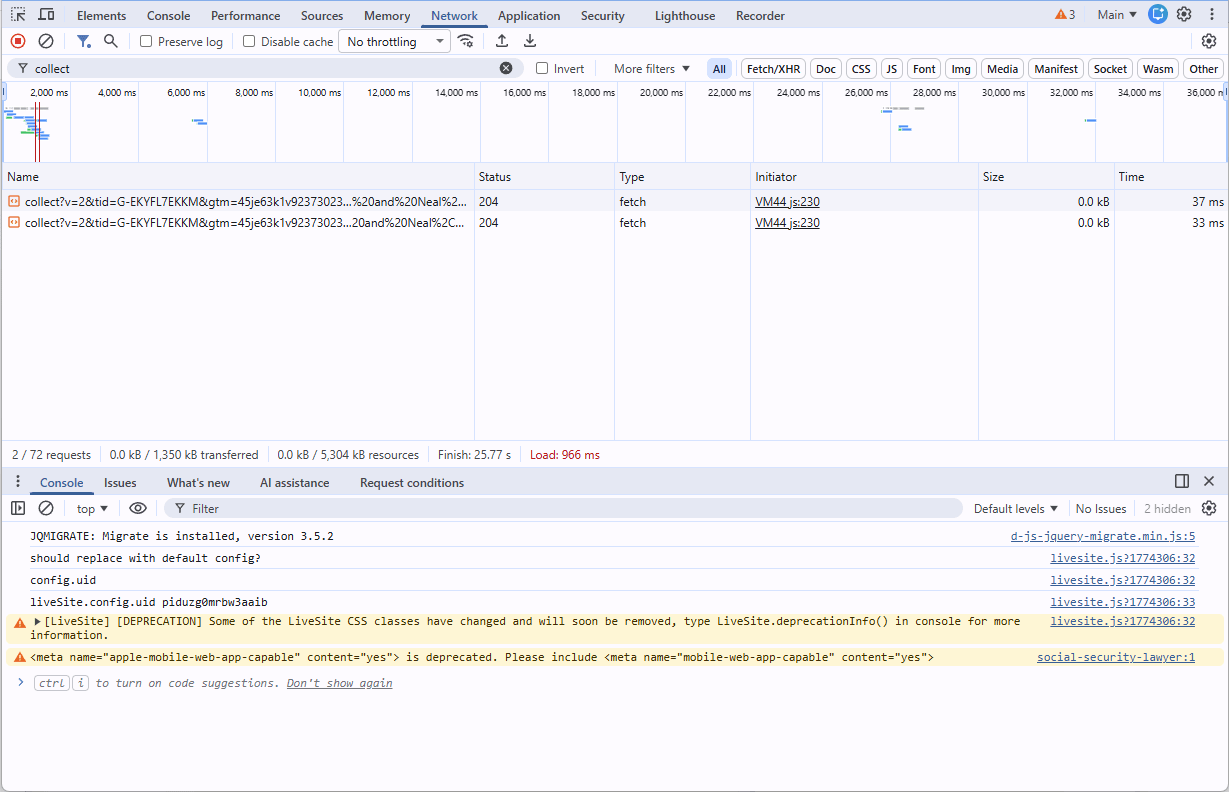
GTM Preview and GA4 DebugView are useful, but they can be incomplete if multiple systems are involved. A request-level view gives you direct visibility into timing, payloads, and source behavior.
A practical validation flow
- Open the page in a clean session if possible.
- Open Chrome DevTools and go to the Network tab.
- Filter for GA4 collection requests such as
collect?v=2or/g/collect. - Perform the action once.
- Look for multiple requests tied to that single action.
What to look for
You are looking for concrete runtime signals:
- Two
page_viewrequests on one page load - Two
generate_leadrequests after one successful submission - Two
purchaserequests tied to one completed order - Requests close together in time with nearly identical payloads
- Matching key parameters across repeated sends, especially
transaction_idfor purchases
The closer the requests are, and the more similar the payloads are, the stronger the duplicate signal.
What this looks like in a scan
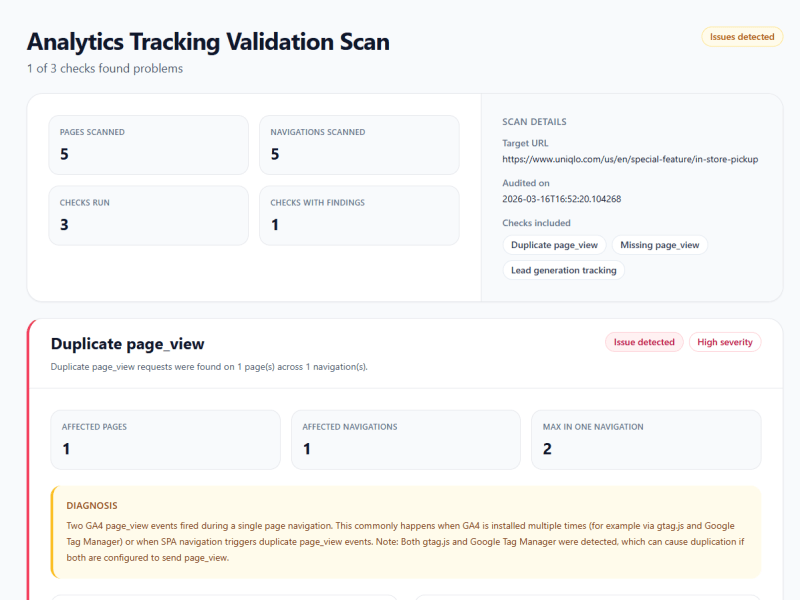
When this happens, a scan will surface the duplicate sends directly.
Use GTM Preview as supporting context
Once you confirm duplicate sends in the browser, GTM Preview can give you a clearer view of the GTM side of the tagging flow.

Use this to inspect which GTM tags fired and what trigger or event caused them. It helps explain the GTM flow, but it does not prove where every duplicate request came from.
Shows two GA4 requests after one action. This confirms the duplication at the request level.
If the Network tab shows duplicate GA4 requests, GTM Preview can help you inspect whether GTM fired related tags and which triggers were involved. That makes the GTM logic easier to review, but the Network tab is still the place to confirm what requests were actually sent.
Run a page scan before digging deeper into GTM.
Common causes
Duplicate tracking usually comes from overlapping send paths. The same event is being sent from more than one place.
Hardcoded GA4 and GTM both sending the event
This is one of the most common causes.
A developer adds GA4 directly in the codebase with gtag(). Later, someone adds the same event in GTM. Both implementations work. Together, they duplicate sends.
This often happens on sites that have been modified by different people over time.
Multiple GTM tags or containers
Sometimes the duplication is entirely inside GTM.
Common examples include two tags tied to the same trigger, old and new tags both staying active, multiple containers installed on the page, or a migrated container left behind. In each case, one action causes more than one tag to send the same GA4 event.
Automatic and manual page_view tracking both active
This is a frequent source of duplicate page views.
GA4 can send page_view automatically, depending on setup. If the implementation also sends a manual page_view, you can end up with two page view requests for one load or one navigation.
This is especially common when a site starts with default GA4 behavior and later adds custom page tracking.
SPA route change logic firing more than once
Single-page apps often need custom page view logic because route changes do not behave like normal page loads.
That creates several failure modes. Automatic page_view may still be active. The route listener may fire more than once. Page view logic may be attached in multiple components. Route changes and virtual page tracking may both send events.
The result is duplicate page_view events for one navigation context.
Form conversion tracked at more than one stage
Lead tracking often duplicates because the event is attached to the wrong points in the flow.
A common pattern is sending generate_lead on button click and then again after a successful submit. Another is firing once on submit and again on the thank-you page. Some setups also duplicate events between frontend validation and backend success handling.
One business conversion becomes two analytics conversions.
Client-side and server-side purchase sends without deduplication
Purchase duplication is common when both browser and server send purchase for the same order.
For example, the frontend may send purchase on the confirmation page while the backend or server-side tagging also sends purchase after order completion.
Without stable transaction identity and deduplication logic, one order becomes two purchase events.
Plugins, apps, or platform integrations adding hidden sends
On platforms like Shopify or WordPress, tracking logic may come from several places at once.
That can include theme code, GTM, native GA4 integrations, ecommerce apps, and marketing plugins. A custom setup may look correct while another system is already sending the same event in the background.
Consent changes causing re-fire behavior
Consent logic can also create duplicates.
A setup may initialize GA4 once, then re-run config or resend events after consent state changes. In some cases, listeners are attached twice. In others, the same event is sent both before and after consent update logic runs.
Repeated dataLayer.push() behavior
Repeated dataLayer.push() events in the frontend can cause the same GA4 tag to fire more than once.
If the same dataLayer.push() event happens more than once, GTM may correctly fire the same GA4 tag more than once. The page is producing duplicate event data.
Where to investigate next
Once you confirm multiple GA4 requests for one action, use the duplicate pattern to decide where to inspect next.
- Duplicates on first load: review whether more than one tracking setup is active, such as GTM plus hardcoded Google tag code, duplicate containers, or a plugin.
- Duplicates only on route changes: review SPA page tracking, especially overlapping route listeners or automatic and manual
page_viewlogic. - Duplicates only on form conversions: review whether the event is tied to more than one stage, such as click, submit, success, or thank-you page load.
- Duplicates only on purchases: check whether both the browser and backend are sending
purchasefor the same order. - Duplicates after consent updates: review whether consent logic is re-initializing GA4, re-attaching listeners, or re-sending events handled earlier in the session.
Use GTM Preview or Tag Assistant as supporting context if you need to inspect the tag setup, but keep the Network tab as the request-level source of truth.
What is not actually a duplicate
Not every repeated event means tracking is wrong.
The key question is whether one action produced more than one event send when only one was expected.
A few cases can look like duplicates without actually being duplicates.
A real second user action
If a user reloads a page, submits a form twice, or starts checkout again, a second event may be valid. Two requests only indicate a problem when they came from one action, not two separate actions.
Separate tracking stages in the same flow
Some flows contain more than one legitimate event. For example, begin_checkout, add_payment_info, and purchase can all happen in one session without duplication. Similar logic applies to lead funnels where one event tracks form start and another tracks successful submission.
The issue is not that multiple events exist. The issue is when the same event is sent more than once for the same stage.
Retry or recovery behavior with a different outcome
A user may submit once, hit an error, and submit again successfully. That can produce repeated-looking behavior in a report while still reflecting real interaction. In that case, inspect the timing, page behavior, and surrounding requests before assuming duplicate tracking.
Similar events with different meanings
Some implementations use closely related event names for different purposes. For example, one team may track a CTA click separately from generate_lead, or track a purchase initiation event separately from confirmed purchase.
Those events may look similar in reporting, but they are not duplicates if they represent different business moments.
This is why request-level inspection matters. You need to verify whether the repeated sends came from one action and whether the payloads represent the same underlying event.
How to fix it
The fix usually comes from removing overlapping event sends.
The goal is simple: one user action should have one tracking path.
Map every possible sender
Start by identifying every place the event could be sent from. In most implementations, that means GTM, hardcoded gtag() calls or other site scripts, plugins or native integrations, and server-side tagging or backend systems.
For page_view, check whether automatic page view tracking and manual sends are both active. For generate_lead, check whether the event is tied to click, submit, success, and thank-you page states at the same time. For purchase, check whether browser and server are both sending the same transaction.
The point of this step is to get a complete map of ownership before changing anything.
Choose one source of truth
Once you find overlap, decide which system owns the event.
If GTM owns generate_lead, remove the hardcoded version. If you use manual SPA page view tracking, disable overlapping automatic page view behavior. If both browser and server send purchase, define ownership or implement explicit deduplication on a stable transaction identifier.
This is usually the real fix. The issue is often not that tracking is broken, but that ownership is split.
Tighten trigger logic
In GTM, many duplicates come from triggers that are technically working but scoped too broadly.
A conversion tag may fire on both click and form submit. Multiple custom event triggers may react to the same flow. Tags may fire once on interaction and again on the confirmation step.
The key question is whether the tag fires once at the correct moment. If the trigger logic allows multiple valid paths for one user action, duplication becomes very easy.
Track the business event at the right stage
This matters most for forms and purchases.
For forms, the right point is usually successful submission, not button click. For purchases, the event should tie to confirmed order completion and use a stable transaction ID. For page views, define what counts as one navigation and make sure only one page_view is sent for it.
A lot of duplicate tracking comes from measuring a technical step in the flow instead of the actual business event.
Retest the exact action
After making changes, verify the fix the same way you verified the problem.
Repeat the action once and inspect the outgoing requests again.
A clean-looking configuration is not enough. One action should now produce one event send.
Concrete examples
Here are specific scenarios to help you recognize and fix duplicate tracking in practice.
Example 1: page_view fires twice on first load
Scanner flagged: The scan shows two page_view sends during a single page load.
Usually means: Usually this means both GTM and hardcoded Google tag code are sending page_view.
Confirm it: Use the Network tab to confirm two page_view requests on one initial load. If GTM is involved, Preview can help you inspect what GTM tags fired during that load.
Typical fix: Remove one sender so page_view has a single source of truth.
Example 2: page_view fires twice on an SPA route change
Scanner flagged: The scan shows repeated page_view sends during one navigation event.
Usually means: Usually this means history change logic and custom route logic are both firing.
Confirm it: Use the Network tab to confirm that one navigation produced two page_view requests. If the site uses GTM, Preview can help you inspect which route-related triggers fired.
Typical fix: Consolidate SPA navigation tracking into one trigger path.
Operational takeaway
Duplicate tracking is usually a runtime tracking problem caused by duplicate sending.
It often appears after changes: a new plugin, a GTM update, a consent change, a framework migration, a checkout rebuild, or a second tracking system layered onto the first.
That is why important events need runtime validation, not just setup reviews.
Suspect inflated GA4 traffic?
Scan any page to check for duplicate page_view requests.